Guides / Troubleshooting
Golden Dragon Not Working? How to Fix Loading, Play Now & Game Issues
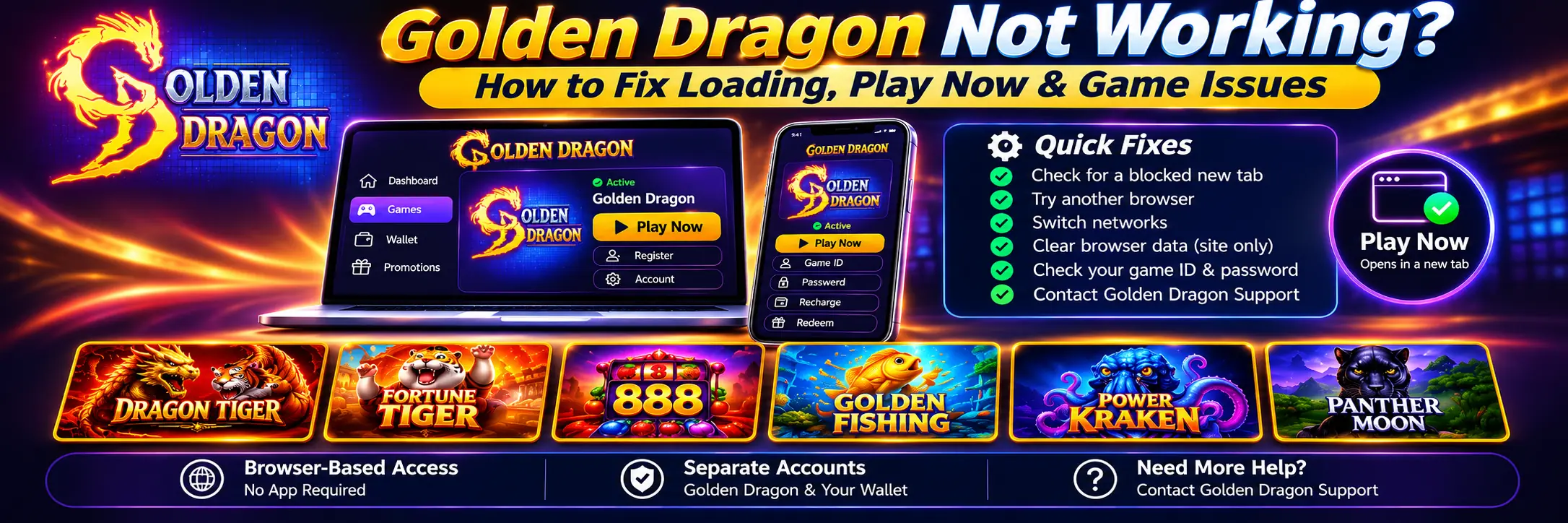
If Golden Dragon won’t open through GoodGDragon, reopen it from the Golden Dragon platform card rather than an old bookmark, select Play Now again, and check whether your browser blocked the new tab.
That’s the best first troubleshooting step.
Find Your Golden Dragon Issue
Before anything else, find your symptom below. The fix depends on where the process is breaking.
| What you’re seeing | First thing to check |
| Play Now does nothing | Browser blocking the new tab |
| Screen stays blank | Client still loading, or browser issue |
| Loads forever, never opens | Connection or initialization |
| PlayGD opens, credentials rejected | Login/account credentials |
| Works on desktop, not phone | That device’s browser |
| Works on phone, not desktop | Extensions or an old bookmark |
| Lobby works, one game fails | That specific title |
| Game froze mid-play | That session |
| Balance looks wrong | Which balance you’re reading |
These are starting points, not diagnoses.
Quick Golden Dragon Troubleshooting Checklist
- Reopen the Golden Dragon card in GoodGDragon — not a saved link.
- Select Play Now once and wait.
- Check for a blocked new tab.
- Switch between Wi-Fi and mobile data.
- Close the browser fully and reopen it.
- Try a different browser.
- Try a different device.
- Check whether only one game is failing.
- Contact GoodGDragon Help with what’s on screen if the issue continues.
You don’t need to install anything. The GoodGDragon Golden Dragon route is browser-based. Golden Dragon mobile access guide
Play Now Does Nothing
A blocked new tab or browser setting is one of the first things to check.
Play Now opens PlayGD in a new tab. If nothing seems to happen, the tab may have been blocked or opened behind the one you’re looking at.
- Look for a blocked-popup icon near the address bar.
- Check your other open tabs.
- Confirm you’re signed in to GoodGDragon and opened the Golden Dragon card.
- Select Play Now once and give it a moment.
Clicking repeatedly can leave several tabs open and make it harder to tell which one is loading.
For Chrome, Google documents how to allow a blocked popup for a specific site. Google Chrome popup settings
If the Golden Dragon card specifically reports that the game URL isn’t configured, note the exact message and contact GoodGDragon Help rather than repeatedly selecting Play Now.
PlayGD Opens but the Screen Stays Blank
A blank screen by itself doesn’t establish that Golden Dragon is down.
The client may still be initializing, or the problem may involve the browser, connection or current session.
The PlayGD client can take a few seconds to initialize before the sign-in screen or game interface appears.
If the screen remains blank:
- Wait a moment before touching anything.
- Reload once.
- Close the tab and reopen Golden Dragon from the GoodGDragon card.
- Switch networks.
- Try another browser.
If the same blank screen remains across browsers and devices, note exactly what appears and contact GoodGDragon Help.
Golden Dragon Is Stuck on the Loading Screen
Possible causes include:
- An unstable connection
- The browser struggling to initialize the client
- Stored data from an old session
- A browser extension or content blocker
Work through them one at a time.
- Test your connection on another website.
- Switch networks — Wi-Fi to mobile data or the reverse.
- Close unnecessary tabs consuming device resources.
- Check for a browser update.
- Review content blockers and privacy extensions.
Change one thing at a time so you can tell what affected the result.
Should You Clear Browser Data?
Clearing site data can help with a stale session, but be selective.
Clear site data for the relevant site only rather than wiping all browser data. Removing every cookie may sign you out of GoodGDragon and other websites.
Make sure you can access your GoodGDragon account again before clearing stored login data.
Golden Dragon Not Working on Your Phone
Golden Dragon access through GoodGDragon runs in the browser, so there’s no app to reinstall for this route. Golden Dragon app and mobile guide
On iPhone or iPad
- Open GoodGDragon in Safari or Chrome and sign in.
- Open the Golden Dragon card.
- Tap Play Now.
- If nothing opens, check whether your browser is blocking pop-ups.
- Try another browser before concluding the platform itself is unavailable.
Apple provides its current Safari popup controls in its iPhone documentation. Apple Safari popup guidance
On Android
- Open GoodGDragon in Chrome and sign in.
- Open the Golden Dragon card.
- Tap Play Now.
- Check Chrome for a blocked-popup notice.
- Switch between Wi-Fi and mobile data.
Google also documents Chrome’s Android popup controls. Chrome popup settings for Android
On either device, a weak or unstable connection can cause the client to begin loading and then stall.
Golden Dragon Works on Phone but Not Computer
If Golden Dragon works on your phone but not your computer, check for a browser-specific issue first.
Possible areas to inspect:
- Extensions and content blockers — temporarily disable them for the site and retry.
- Popup or new-tab blocking — check whether PlayGD was prevented from opening.
- An old bookmark — reopen Golden Dragon from your card instead.
- Browser version — update the browser if an update is available.
Try the same GoodGDragon route in a second browser.
If it works there, that points to a browser-specific issue.
One Golden Dragon Game Won’t Open
Treat this as potentially specific to that title.
Return to the lobby and open another game.
If another title loads, that points to a title-specific issue rather than a failure of the entire PlayGD route.
Close and reopen the affected title once, then note:
- Game name
- Error message
- Device
- Browser
- Approximate time
If the same title keeps failing, send those details to GoodGDragon Help.
A Golden Dragon Game Froze During Play
Don’t click repeatedly or resubmit the same action.
Instead:
- Give the screen a moment to respond.
- Note the game title and approximate time.
- Return to the lobby if the browser allows it.
- Check the balance shown on your Golden Dragon card.
A frozen screen doesn’t establish that a transaction failed or that balance was lost.
Keep the session details so support can investigate if necessary.
Golden Dragon Balance Isn’t Updating
First make sure you’re comparing the correct balances.
Your Golden Dragon game balance and your GoodGDragon wallet balance are separate.
- Recharge moves eligible value from the GoodGDragon wallet into Golden Dragon.
- Redeem moves eligible game balance back into the GoodGDragon wallet.
- Withdraw is a separate wallet-level action.
GoodGDragon’s cash-out guide documents this distinction. Golden Dragon cash-out and balance guide
The Golden Dragon card also has a Refresh Balance control.
Use Refresh Balance before treating the displayed figure as evidence that a Recharge or Redeem failed.
If the balance still appears wrong:
- Confirm whether the Recharge or Redeem completed.
- Compare the wallet figure against the game-card balance.
- Don’t resubmit an action while its status is unclear.
- If the message specifically asks you to refresh, use Refresh Balance once before taking another action.
If the problem remains, contact GoodGDragon Help with the time, amount and figures currently displayed.
PlayGD Loads but Rejects Your Game ID or Password
If the PlayGD sign-in screen loads and then rejects the credentials, focus on the account or credential checks rather than the initial loading steps.
Check these three things:
- Use the Game ID shown on your Golden Dragon card, not your GoodGDragon email.
- Check for spaces accidentally added while copying or pasting.
- Use the Golden Dragon game password, not your GoodGDragon account password.
On the PlayGD sign-in screen, the Game ID may appear under a field labelled Mobile ID.
It refers to the corresponding game-account identifier, but the different label can be confusing.
For the full credential flow, see the Golden Dragon login guide.
If you don’t have Golden Dragon credentials yet, use the Golden Dragon sign-up and account setup guide.
What If You Forgot the Golden Dragon Password?
At the time checked, the Golden Dragon card did not show the same password-change control available on some other GoodGDragon platform cards.
If the current PlayGD sign-in screen offers a recovery option, follow that on-screen process.
Otherwise use GoodGDragon Help rather than following password-reset instructions from an unrelated Golden Dragon website.
Is Golden Dragon Down?
One failed device does not establish an outage.
A browser, network connection or individual session could produce a similar symptom.
If Golden Dragon fails across multiple devices and different networks while GoodGDragon itself works normally, a platform-side issue becomes more plausible — but those tests still do not confirm an outage.
No official public PlayGD status page has been verified for this guide.
If your Golden Dragon card itself shows an offline or unavailable status, treat that as stronger evidence than a failure on a single device.
Old Bookmark vs the Current Golden Dragon Route
This is worth checking early.
The PlayGD destination can include a version-style path segment, and opening Golden Dragon from your GoodGDragon card sends you to the destination currently configured for your account.
That means an old saved link may eventually stop being the best route.
Always reopen Golden Dragon from the platform card when troubleshooting.
Don’t Install an APK to Fix Golden Dragon
A loading problem is not a reason to install an APK, emulator or unofficial client.
The GoodGDragon route covered here runs in the browser, and its Golden Dragon card does not require an app download. Golden Dragon app download guide
Do not assume a page advertising a Golden Dragon APK or PlayGD Mobi APK is connected to your GoodGDragon account.
An APK is not required for this browser route.
What Not to Do
- Don’t create a second Golden Dragon account just to troubleshoot the first.
- Don’t resubmit Recharge or Redeem while the previous status is unclear.
- Don’t install unfamiliar software.
- Don’t give credentials to someone who contacts you privately offering help.
- Don’t assume a loading issue means your balance is lost.
- Don’t conclude Golden Dragon is down based on one device.
When to Contact GoodGDragon Support
Contact GoodGDragon Help when:
- The problem continues across another browser, device and network.
- Controls are missing from your Golden Dragon card.
- A balance remains incorrect after refreshing.
- The platform card displays a configuration error.
- One game repeatedly fails.
- Your account credentials continue to be rejected after checking them carefully.
Include:
- Platform: Golden Dragon
- Device and browser
- What happens after selecting Play Now
- Exact error message
- Game title, if only one game is affected
- Approximate time the problem started
Never include your password in a support message.
Use the official GoodGDragon Help page for account-specific assistance.
Golden Dragon Not Working FAQs
Why Is Golden Dragon Not Working?
Possible causes include a browser blocking the new tab Play Now opens, the PlayGD client still initializing, a connection issue, a browser-specific problem or an account-specific issue.
Reopen Golden Dragon from your platform card, check for a blocked popup and give the client a moment before reloading.
Why Does Golden Dragon Keep Loading and Never Open?
Possible causes include the connection or the client still initializing.
Test another site, switch networks and try another browser before assuming Golden Dragon itself is unavailable.
Why Does Play Now Do Nothing?
Play Now opens PlayGD in a new tab, so a blocked popup is worth checking first.
Look for a blocked-tab notice and check your other browser tabs.
Why Is the Golden Dragon Screen Blank?
The PlayGD client can take a few seconds to initialize.
If the screen remains blank, reload once and then reopen Golden Dragon from the GoodGDragon card.
Why Is Golden Dragon Not Working on My iPhone?
Check whether Safari or your current browser is blocking pop-ups, allow them for the site if necessary, and try another browser.
A weak or unstable connection can also cause the client to stall during loading.
Why Isn’t My Golden Dragon Balance Updating?
Use Refresh Balance on the Golden Dragon card before treating the displayed figure as evidence that a transaction failed.
Then confirm whether Recharge or Redeem completed and make sure you’re not comparing your GoodGDragon wallet balance with your Golden Dragon game balance.
Is Golden Dragon Down Right Now?
One device cannot establish that.
If your Golden Dragon card shows an offline or unavailable status, that is stronger evidence. Otherwise test another browser, device or network and use GoodGDragon Help if the problem continues.
Why Is One Golden Dragon Game Not Loading?
If other games open, that points to an issue specific to that title.
Note the game name and any error shown, then contact Help if it continues failing.
Do I Need a Golden Dragon APK?
No APK is required for the GoodGDragon browser route covered here.
A loading problem is not a reason to install an unverified file.
Start again from the Golden Dragon platform card in your GoodGDragon account and use Play Now to open the current route.
If the problem continues across another browser, device or network, contact GoodGDragon Help with exactly what you see on screen.
Players must be at least 18, or the age of majority in their jurisdiction if higher. Availability depends on location and play is void where prohibited. Review the current Terms and Conditions and Responsible Gaming information.