Guides
How to Add Money to Your Orionstars Account
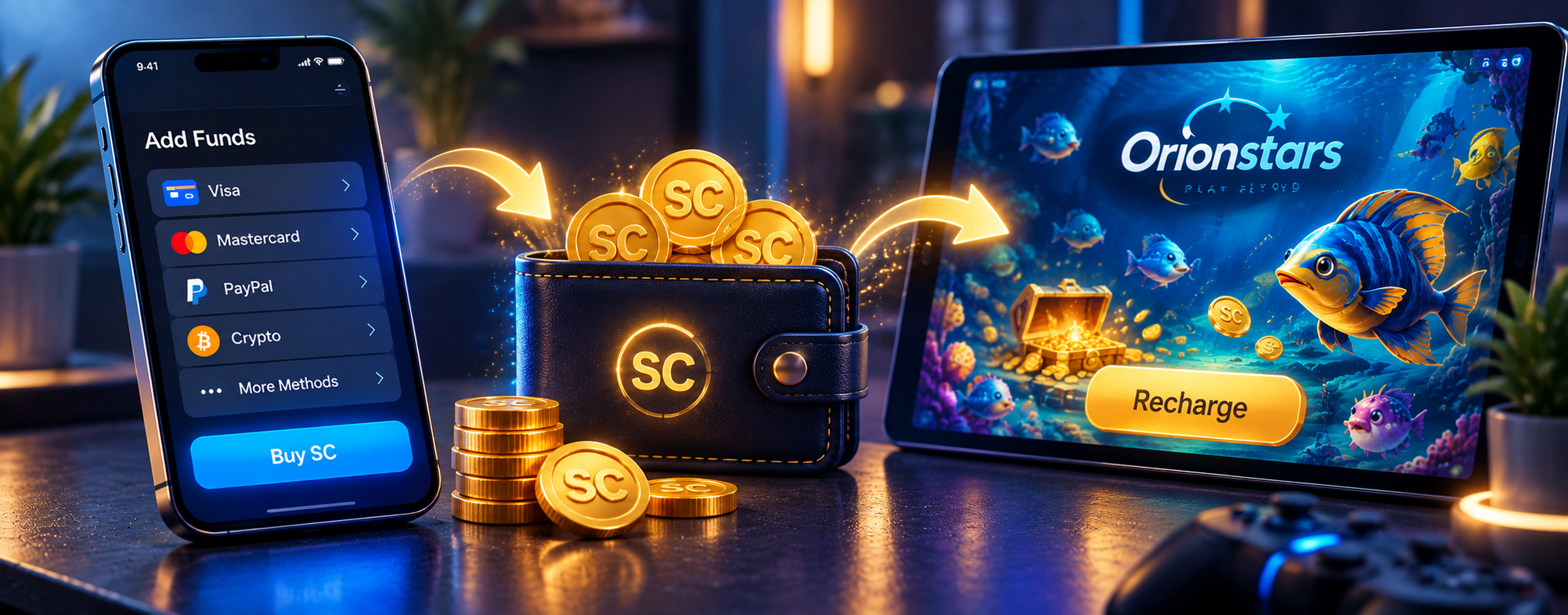
Funding Orionstars through GoodGDragon takes two steps, and skipping the second one is an easy way to end up thinking a payment has gone missing.
Buy SC on the Deposit page → check your wallet → Recharge into Orionstars
Your payment buys Sweepstakes Coins, and those coins land in your GoodGDragon wallet. They don't reach the game until you recharge. If your wallet shows the balance but Orionstars doesn't, that's the step to check before you pay anything again.
Below: how the flow works, every payment method with its processing time, what to confirm before you pay, and a four-step diagnostic for when a balance doesn't move.
Deposit vs. Recharge: The Difference That Matters
Deposit adds value to your GoodGDragon account. You're buying Sweepstakes Coins, and they sit in your wallet.
Recharge moves that balance out of your wallet and into a specific game — Orionstars, in this case.
If you take one thing from this guide, take that. Money reaching GoodGDragon is not the same as coins reaching Orionstars, and a payment confirmation email tells you nothing about the second half.Recharge runs at a 1:1 rate, so 20 SC moved out of your wallet arrives as 20 SC in the game.
Why Orionstars Works This Way
Orionstars is one of GoodGDragon's wallet-integrated lobby platforms. That's what makes the recharge possible at all — your wallet and the game balance are connected, so coins can move between them.
The Link2Play destinations listed elsewhere on the site work differently. Those send you to third-party sites that run their own accounts and their own balances, and your GoodGDragon wallet doesn't reach them. You can see which is which from the GoodGDragon platforms area.
Worth knowing if you've read funding instructions for a different platform and wondered why they don't match what's on your screen. Follow the Orionstars route, not one written for something else.
About Your Balance Types
Your GoodGDragon wallet can show more than one kind of SC balance — purchased, bonus, and redeemable coins are tracked separately, alongside whatever sits inside the game itself.
When you recharge, check which balance you're actually moving. It's the difference between a transfer going through as expected and a confusing result you then have to ask support about.
How to Add Money to Orionstars, Step by Step
1. Sign In to GoodGDragon
Sign in to GoodGDragon and start from your existing account — or create one if you haven't yet. Orionstars isn't a separate payment portal, so there's nothing to set up on their end and no second checkout to find.
If you haven't linked your game account yet, use Connect Your Account first. The game username has to begin with a letter and run at least six characters. Get this wrong and the recharge has nowhere to land.
2. Open the Deposit Page
This is where you buy Sweepstakes Coins and choose how to pay. The lowest amount you can select is $9.99 as of September 2026.
3. Choose Your Amount and Payment Method
Six methods are currently available, listed in full below with their processing times. Pick the one you mean to use rather than whatever your browser remembers from last time.
4. Complete the Payment
Check the amount before you confirm. Then keep the payment confirmation or transaction reference until you've watched the coins arrive. It's what support would use to investigate the transaction if you ever need them to.
5. Check Your Wallet
Confirm the SC has landed in your GoodGDragon wallet before you go any further.
It's an easy place to stop. The payment went through and the confirmation arrived, so you open Orionstars expecting a balance and find nothing. The coins are sitting in the wallet, exactly where they're supposed to be at this stage.
6. Recharge Orionstars
Use Recharge to move the SC from your wallet into the Orionstars balance. Check the selected game account before you submit, then confirm the balance updated inside the game.
Now you're funded.
Payment Methods and Processing Times
Accurate as of September 2026. Payment options change from time to time, so check the Deposit page for anything added or removed since.
| Payment MethodProcessing Time | |
| Credit/Debit Card | Instant |
| Cash App | Instant |
| Chime Auto | Instant |
| Chime Manual | 2–5 minutes |
| Apple Pay | Instant |
| Google Pay | Instant |
Those times cover the deposit only — the journey from your payment method into your GoodGDragon wallet. Even on an instant method, the coins stay in the wallet until you recharge them into the game.So "instant" doesn't mean the game balance updates on its own. It means you can move to step six straight away.
What to Check Before You Pay
Thirty seconds here can save you a support ticket:
- You're signed into the GoodGDragon account you actually meant to use.
- You're on the current Deposit page.
- The payment method is the one you intended.
- The amount is right.
- The connected Orionstars account is the one you want to fund.
- You know whether you're buying new SC or moving coins you already have.
- You've saved the payment confirmation or transaction reference.
Don't reuse old payment details just because they worked before. Methods get added and removed, and an instruction that was right three months ago may not match what's on the page today.
Paid, but the Orionstars Balance Hasn't Updated
Don't send another payment. Work out where the transaction actually stopped first. A second payment just gives you a second thing to untangle.
Check 1: Did the Payment Complete?
Confirm it succeeded rather than sitting pending or declining quietly. A pending card payment looks identical to a successful one until you look at the status.
Check 2: Did the SC Reach Your Wallet?
Open your GoodGDragon wallet and look for the coins. If they're not there and the payment is confirmed, that's a payment issue and you can skip to Check 4.
Check 3: Did You Recharge the Right Account?
If the coins are in your wallet but not in the game, the recharge is what's missing — either it wasn't completed, or it went to a different game account. Check which account was selected.
If the recharge did go through and the game still shows an old number, refresh or reopen Orionstars to check whether the displayed balance updates.
Check 4: Still Missing?
Contact support rather than paying again. Use the in-app live chat or email support@goodgdragon.com, and have your transaction reference ready so they can match it to the payment.Tell them which stage it stopped at — payment, wallet, or recharge. That detail helps them narrow it down faster.
Mistakes That Cost People Time
Four things worth avoiding:
Stopping after the payment. The deposit is half the job. Without the recharge, the coins stay in the wallet indefinitely.
Recharging the wrong game. If you play more than one platform, the balance goes wherever you pointed it. Check the selection before submitting.
Paying twice. Resubmitting a payment that's merely slow leaves you with two transactions to untangle instead of one to wait out.
Not saving the reference. Without it, support has less to work with when they go looking for your payment.
Frequently Asked Questions
How Do I Add Money to Orionstars Through GoodGDragon?
Buy Sweepstakes Coins on the GoodGDragon Deposit page, then use Recharge to move them into your Orionstars balance. The purchase and the recharge are two separate steps.
What Payment Methods Can I Use?
Credit/Debit Card, Cash App, Chime Auto, Chime Manual, Apple Pay, and Google Pay. Availability can change, so check the Deposit page before paying.
What's the Minimum Amount I Can Add?
The lowest selectable amount on the Deposit page is $9.99 as of September 2026.
How Long Does It Take for Orionstars Credits to Show?
Most payment methods are instant. Chime Manual takes 2 to 5 minutes. After the coins reach your wallet, you still need to recharge them into the game.
What Is a Sweepstakes Coin?
SC is the currency GoodGDragon uses in your wallet. You buy SC on the Deposit page, then recharge it into a game balance at a 1:1 rate.
Can I Pay Orionstars Directly Instead?
No. Funding runs through your GoodGDragon account. Orionstars isn't a separate payment portal in this flow.
Can I Fund Orionstars Through a Third-Party App?
Use the Deposit and Recharge flow inside GoodGDragon. Don't follow payment instructions from unrelated third-party apps or download pages, whatever they call themselves.
Why Is My GoodGDragon Balance Showing but Not My Orionstars Balance?
The recharge step is probably still outstanding. Check that Recharge was submitted for the correct Orionstars account before making another payment.
Can I Use Cash App to Fund Orionstars?
Yes. Cash App is one of the six deposit methods currently listed, and it's marked as instant.
What If I Recharged the Wrong Game?
Contact support with your transaction reference and explain which account you meant to fund. Don't make a second payment to correct it.